> For the complete documentation index, see [llms.txt](https://docs.verticalstudio.ai/llms.txt). Markdown versions of documentation pages are available by appending `.md` to page URLs; this page is available as [Markdown](https://docs.verticalstudio.ai/vertical-products/motion/motion-director-agent/getting-started.md).
# Getting Started
From zero to finished video in minutes.
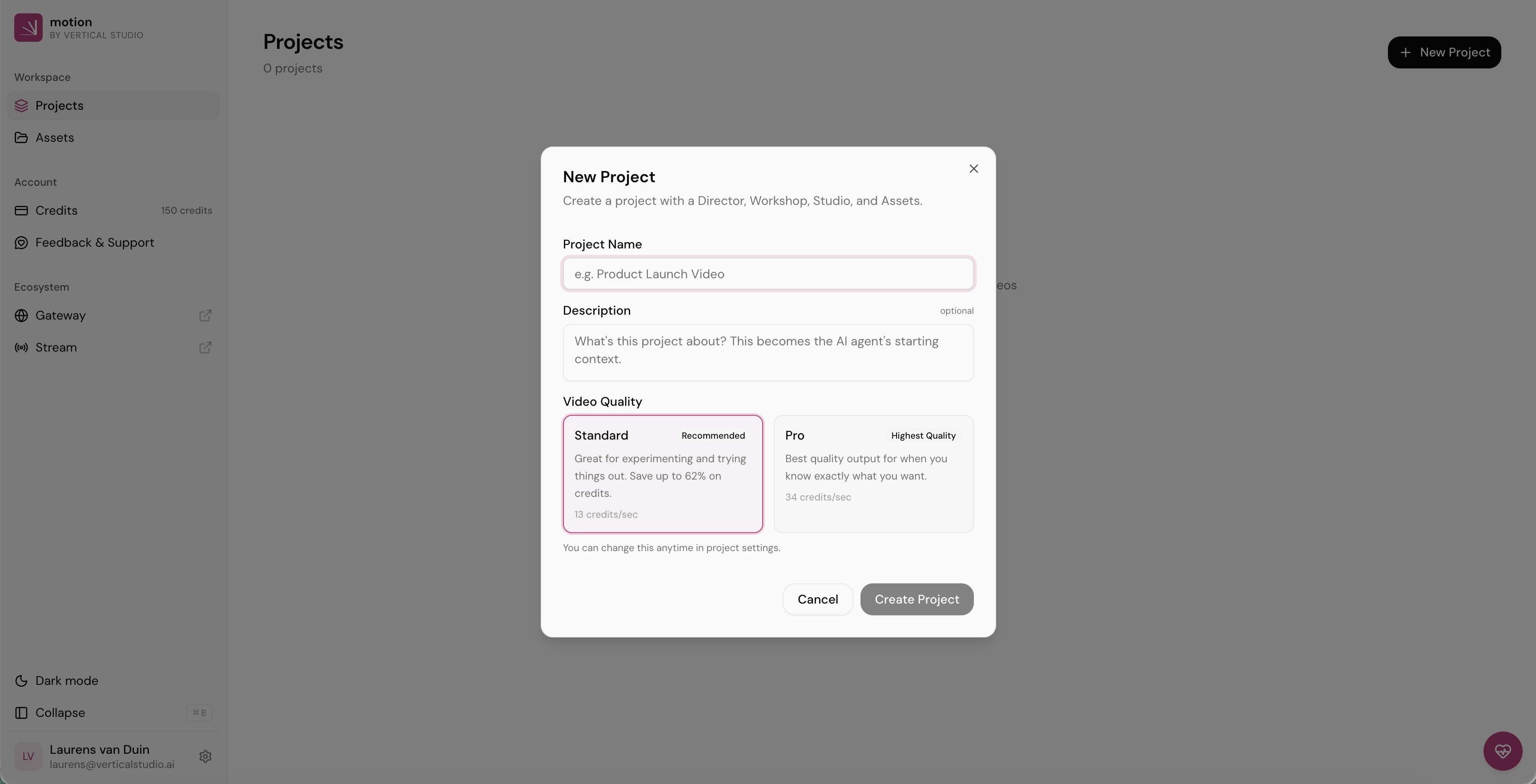
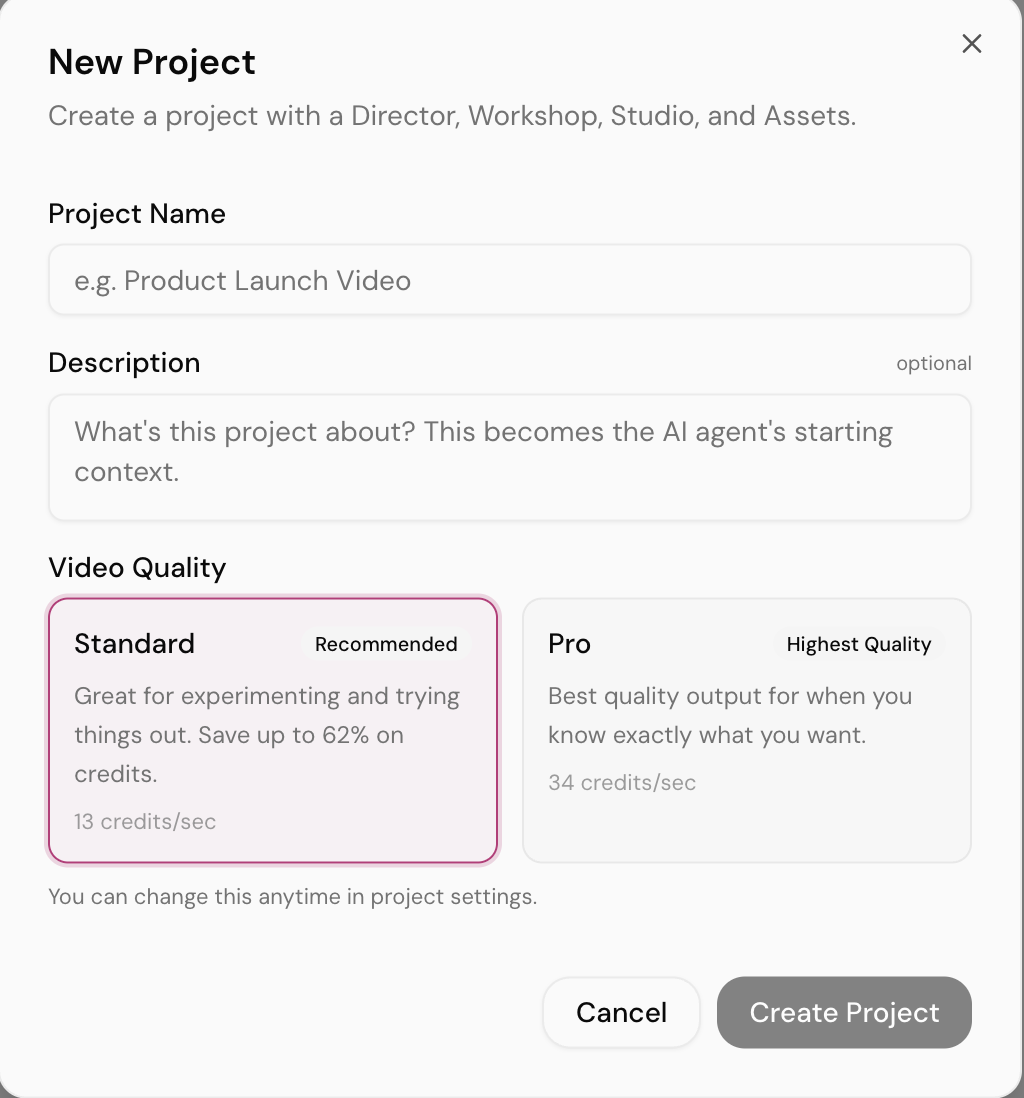
### Step 1: Create a New Project
Click **+ New Project** in the AI Director to get started. You'll choose two things:
#### Video Quality
This sets the video generation model for your entire project.
| Tier | Model | Cost | Best for |
| ------------ | ----------------- | ----- | -------------------------------------------------- |
| **Standard** | Kling O3 Standard | 13c/s | Quick iterations, drafts, budget-friendly projects |
| **Pro** | Kling O3 Pro | 34c/s | Final output, maximum quality, client-facing work |
> **Important:** Video quality is locked at project creation. You cannot switch from Standard to Pro (or vice versa) after the project is created. Choose Pro if quality matters more than credits.
#### AI Smartness
This sets the initial text model powering the AI Director. You can change this at any time (see Step 2).
| Level | Cost | Best for |
| ---------- | ---- | ----------------------------------------------------------------------- |
| **Swift** | $ | Simple projects, quick iterations |
| **Smart** | $$ | Most projects — good balance of speed and quality |
| **Genius** | $$$ | Complex narratives, detailed scene planning, nuanced creative direction |
***
### Step 2: Configure & Describe
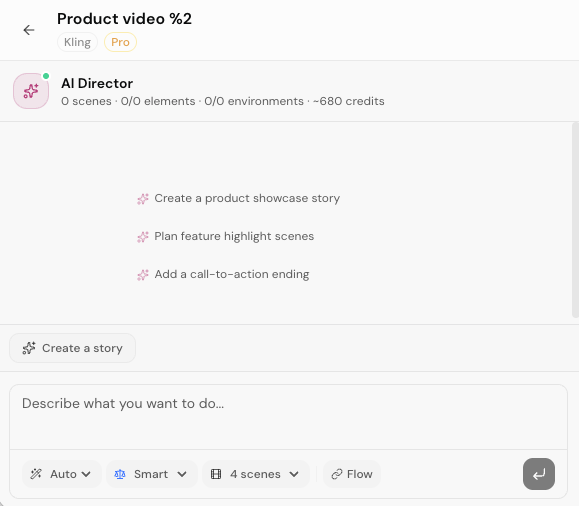
The Director's chat box has **four dropdown controls** at the bottom. Set these up, then describe your video idea — the Director takes it from there.
| Setting | What it controls | Can change later? |
| ------------ | ----------------------------------------------------------------------------------- | ----------------- |
| **Mode** | How the Director behaves — Auto, Plan, Build, or Ask | Yes, anytime |
| **AI Model** | Text model powering the Director — Swift ($), Smart ($$), Genius ($$$) | Yes, anytime |
| **Scenes** | Number of scenes to plan — acts as a budget limit | Yes, anytime |
| **Flow** | How scenes connect — new scenes (cinematic cuts) or continuous (smooth transitions) | Yes, anytime |
> **Recommended starting setup:** Auto mode, Smart model, 4 scenes, Flow based on your video style. You can adjust all of these as you go.
#### Describe your video
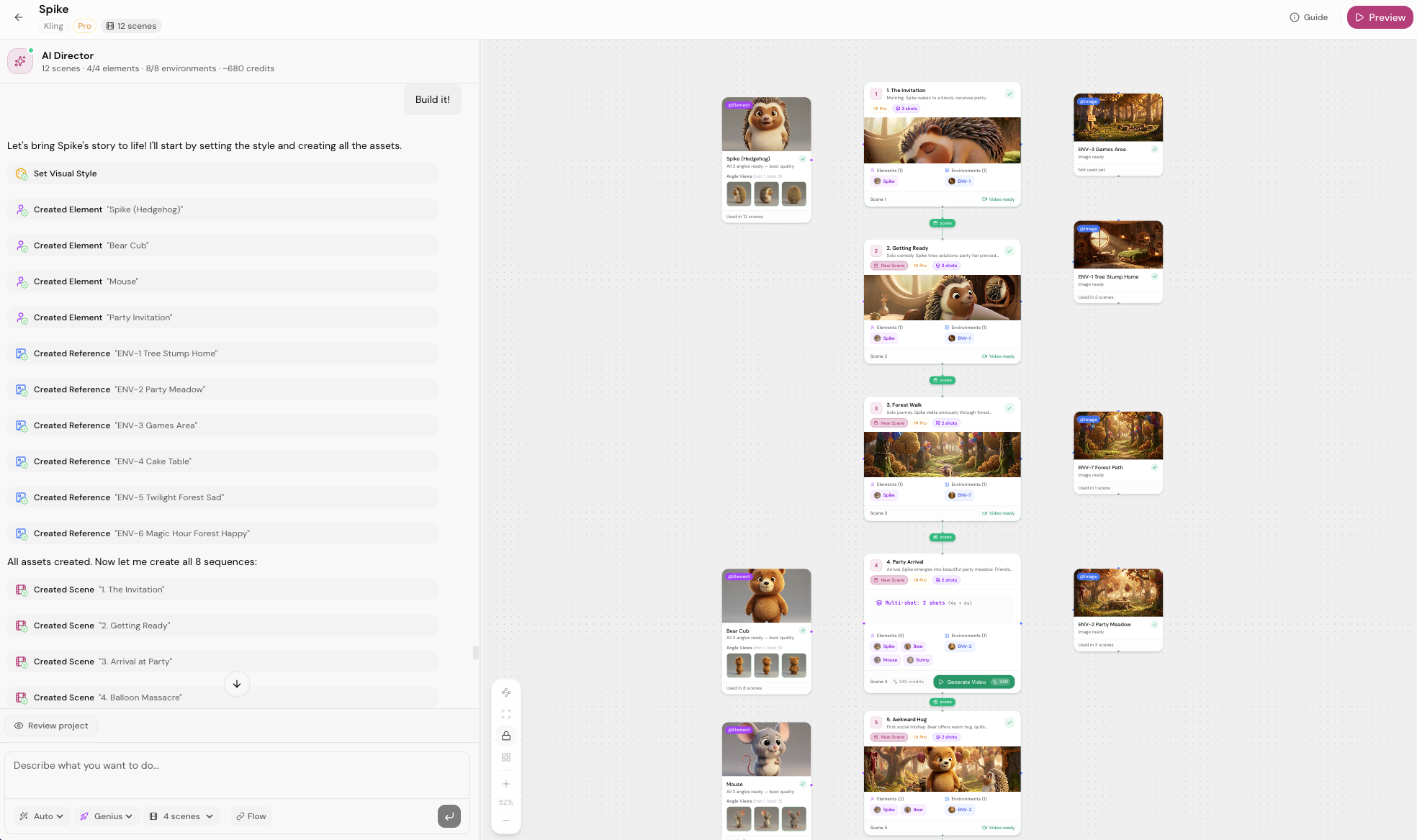
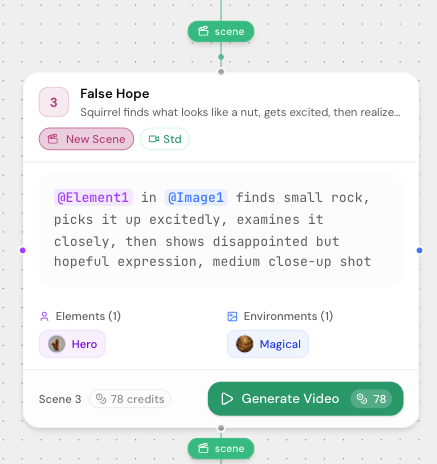
Once your settings are configured, type your idea into the chat. The AI Director builds scenes, elements, and environments automatically on the **canvas** to the right. The canvas updates in real-time.
**Try these prompts to get started:**
* *"Create a 4-scene product demo with a futuristic look"*
* *"A 30-second animated short about a robot discovering music"*
* *"Add a glowing portal element"*
* *"Add a hero in a red jacket"*
The Director handles everything: scene structure, pacing, element creation, environment setup, prompt optimization, and all connections between scenes and elements. The canvas on the right updates in real-time as it builds your project.
> **The Director controls the canvas.** You can't directly add or rearrange scenes, elements, or connections — all structural changes happen through the chat. This keeps everything in sync automatically.
***
### Step 3: Build Your Assets
The canvas shows your project as cards. Each card needs generated images before you can make videos.
| Card color | Asset type | What it is |
| ---------- | ----------- | ----------------------------------------------------------------------------- |
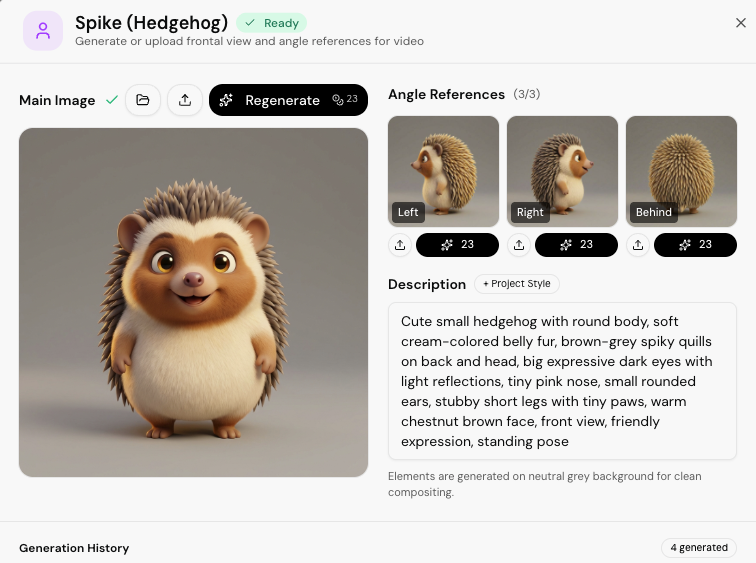
| **Purple** | Element | Characters, objects, props — anything that must stay consistent across scenes |
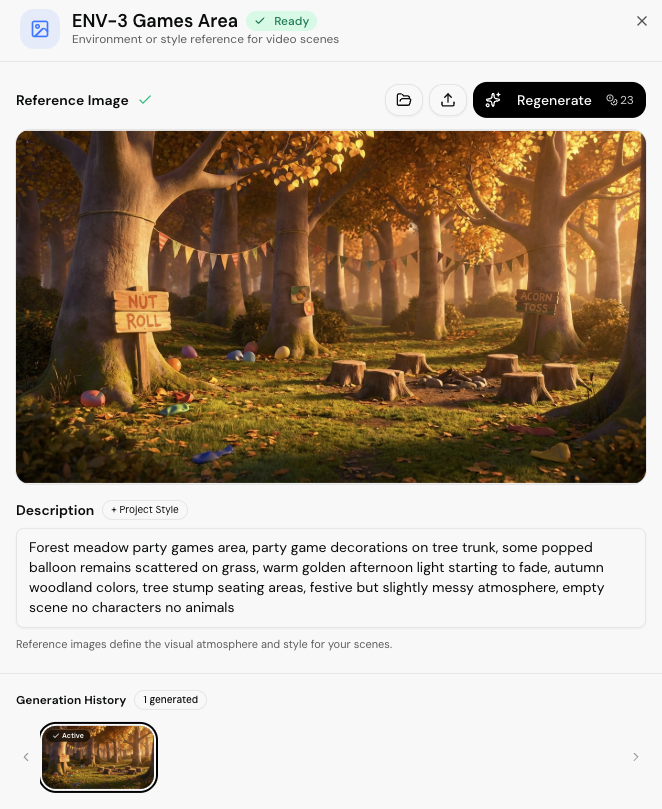
| **Blue** | Environment | Locations, backgrounds, visual style references |
**How to generate:**
1. **Click any card** on the canvas to open its detail panel
2. **Generate images** — the model creates visual assets for that element or environment
3. **Review and regenerate** if needed — get the look right before moving to video
> Assets stay consistent across all your scenes. Generate them once, use them everywhere.
***
### Step 4: Generate Videos
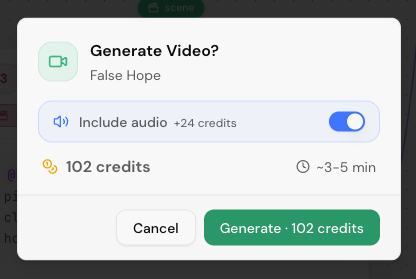
When all assets for a scene are ready, a green **Generate** button appears on that scene's card.
1. **Click Generate** on any ready scene
2. Videos generate in the background — **keep working** while they process
3. **Preview all scenes** together in cinematic mode once they're done
4. **Export to Studio** for editing and rendering
> Green button = ready to generate. No green button = that scene still needs asset images.
***
### Step 5: Edit in Studio
One click sends all your generated scenes to **Studio** — the built-in video editor.
* Arrange clips on the timeline
* Add music, sound effects, and voiceover
* Drop in transitions between scenes
* Add text overlays and titles
* Render and download your finished video
***
### Quick start: Playground
For one-off generations or experimenting with models outside of a Director project.
**1. Open Playground** and pick a model (or ask the AI assistant)
**2. Enter your prompt** — or let the assistant optimize it
**3. Generate** — result lands in your Assets
**4. Use it** — in a Director project, in Studio, or download directly
***
### Tips for great results
| Tip | Why |
| ------------------------------------- | -------------------------------------------------------------------------------------------------------------- |
| **Choose Pro for final output** | Standard is great for drafts, but Pro delivers noticeably better quality |
| **Start with Auto + Smart** | Auto mode picks the right behavior; Smart is enough for most projects. Switch to Genius for complex narratives |
| **Be specific about style** | "Pixar 3D, warm amber lighting" beats "animated" |
| **Keep actions simple** | Slow, deliberate motion works best with AI video |
| **Let the Director plan first** | Review the canvas before generating — saves credits |
| **Generate all assets before scenes** | Every element and environment needs images first |
| **Start with 3–4 scenes** | Get comfortable before going big |
AI video models work best with controlled motion. The Director knows this and will guide you, but as a rule: slow, deliberate actions produce better results than fast, complex movements.
---
# Agent Instructions
This documentation is published with GitBook. GitBook is the documentation platform designed so that both humans and AI agents can read, navigate, and reason over technical content effectively. Learn more at gitbook.com.
## Querying This Documentation
If you need additional information that is not directly available in this page, you can query the documentation dynamically by asking a question.
Perform an HTTP GET request on the current page URL with the `ask` query parameter, and the optional `goal` query parameter:
```
GET https://docs.verticalstudio.ai/vertical-products/motion/motion-director-agent/getting-started.md?ask=&goal=
```
`ask` is the immediate question: it should be specific, self-contained, and written in natural language.
`goal` is optional and describes the broader end goal you are ultimately trying to accomplish on behalf of the user. GitBook uses it to tailor the answer towards what is most useful for that goal.
The response will contain a direct answer to the question and relevant excerpts and sources from the documentation.
Use this mechanism when the answer is not explicitly present in the current page, you need clarification or additional context, or you want to retrieve related documentation sections.